
Find a ride
Four ways to search published shared rides.
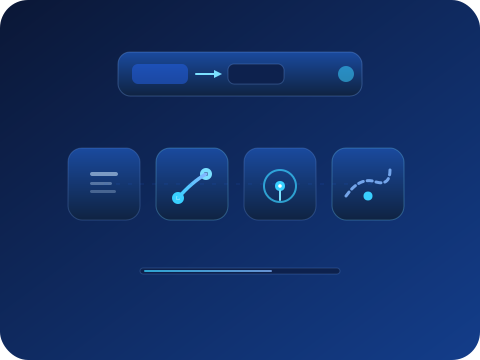
Every search starts on the Trips page, and you do not need an account to look. TrustTrip is a Canadian carpooling platform that understands routes as segments. You can board at one stop and leave at another, so the search is smarter than a simple departure-to-destination match. This guide covers the four discovery modes, the filters, and the path from a result to a reserved seat.
Four discovery modes
Switch modes with the chips above the trips list. Each mode answers a different question:
All: what is out there?
Every upcoming scheduled trip, with no route or location filter. Best for browsing a region's catalog, spotting recurring routes, or checking whether TrustTrip is active along your route before you plan anything.
From A → B: does my trip exist?
The precise mode: enter departure, destination, an optional date, and seats. It matches any published trip that can serve your segment, including trips that pass through your points partway along a longer route. Results only include trips with enough seats left.
Nearby: what leaves around me?
For signed-in members sharing their location: trips whose departure point is close to your saved position. Useful when you are flexible on destination and want to see what the community around you is driving.
Along the route: who drives past me?
Also signed in with location sharing: trips whose published path passes within your search radius, even if their endpoints are nothing like yours. This is the mode that finds the commuter driving past your neighbourhood every morning.
Share my location
Location modes (Nearby and Along the route) need your consent: turn on Share my location while signed in, and your position is used to match trips around you. Typed From A → B search never uses GPS. Guests can use All and From A → B without an account, and nothing is located without the explicit toggle.
Filters that actually narrow things down
Max price and minimum seats
Max price hides trips above your limit, using the shared trip amount or the from-price in results. Min seats keeps only trips that still have the number of free seats you need. This is useful when travelling as a pair or group.
Time of day and trip type
Filter departures by time of day, whether morning, afternoon, evening, or night, and by short or long trip classification. Trip type is mostly useful in All mode when browsing a large catalog.
Radius (location modes)
The search radius, in metres, is used by Nearby and Along the route. Widen it when results are thin. Tighten it when you only want trips truly passing by your point.
From a result to a reserved seat
- Open the trip page — The full picture lives there: official route points, schedule, available seats, the driver's profile and reviews, and the complete amount breakdown for your segment before any commitment.
- Check the details that matter to you — Boarding point, drop-off point, departure time, and total. The trip page shows official stops, what the driver accepts, and what they do not. Read it carefully because the offer is complete before you commit. Messaging the driver opens after you book, not before, so you always know what you are reserving. If a detail is still unclear, use the support chat on that trip page. Our team will help you find the answer. For anything else, we are here for you.
- Reserve in secure checkout — Sign in, pick your boarding and drop-off points, and confirm. Your seat is confirmed when checkout completes and the booking is created in your passenger space. The full journey is on How it works.
No matching trip? Post a ride request
When no published trip fits, post a ride request with your route, date, and flexibility. Drivers already planning that route see open requests, and when one publishes a matching trip you are notified so you can book through the normal flow. A request is not a reservation. It takes a minute, and it is how seats appear on routes the catalog does not cover yet.
Search FAQ
Three moves, in order: widen the date or remove it entirely, relax filters (price, time window, seats), then switch to All to see the full catalog for that area. Still nothing? Post a ride request so drivers already planning that route can offer seats. A request is not a booking. That signal is how missing routes get published.
No. All and From A → B are open to everyone, including full trip pages with the amount breakdown. An account becomes necessary for the location modes, posting a ride request, and reserving a seat. Before you book, use the support chat on a trip page if you need help reading the listing. Messaging the driver opens after checkout.
Yes. That is one of TrustTrip's core strengths. Trips are published with official route points, and you can book the segment between any two of them. From A → B matches partial segments automatically. The trip page then shows the exact amount for your portion.